AWS Kinesis

The Bell Data Streamer Service can be integrated with AWS Kinesis which is ideal for collecting and processing large streamed data records in near real-time. AWS Kinesis are integrated using AWS IAM Trust Relationships. The setup of the AWS integration can be done through the Bell Portal. The following subchapters explain the Cloud Formation and Bell Portal setup as well as some testing procedures.
AWS Kinesis Configuration
To setup the Bell Data Streamer integration with AWS Kinesis, it is recommended to use the Cloud Formation Template provided in the Bell Portal. As a reference the used Cloud Formation Template is provided on the Bell GitHub page. After completing the steps, the selected record type should show up in the AWS Kinesis Stream bucket. Please note that this may take some time and events/usage records need to be generated by the SIMs. If there are any issues or problems with the setup, please feel free to contact our support.
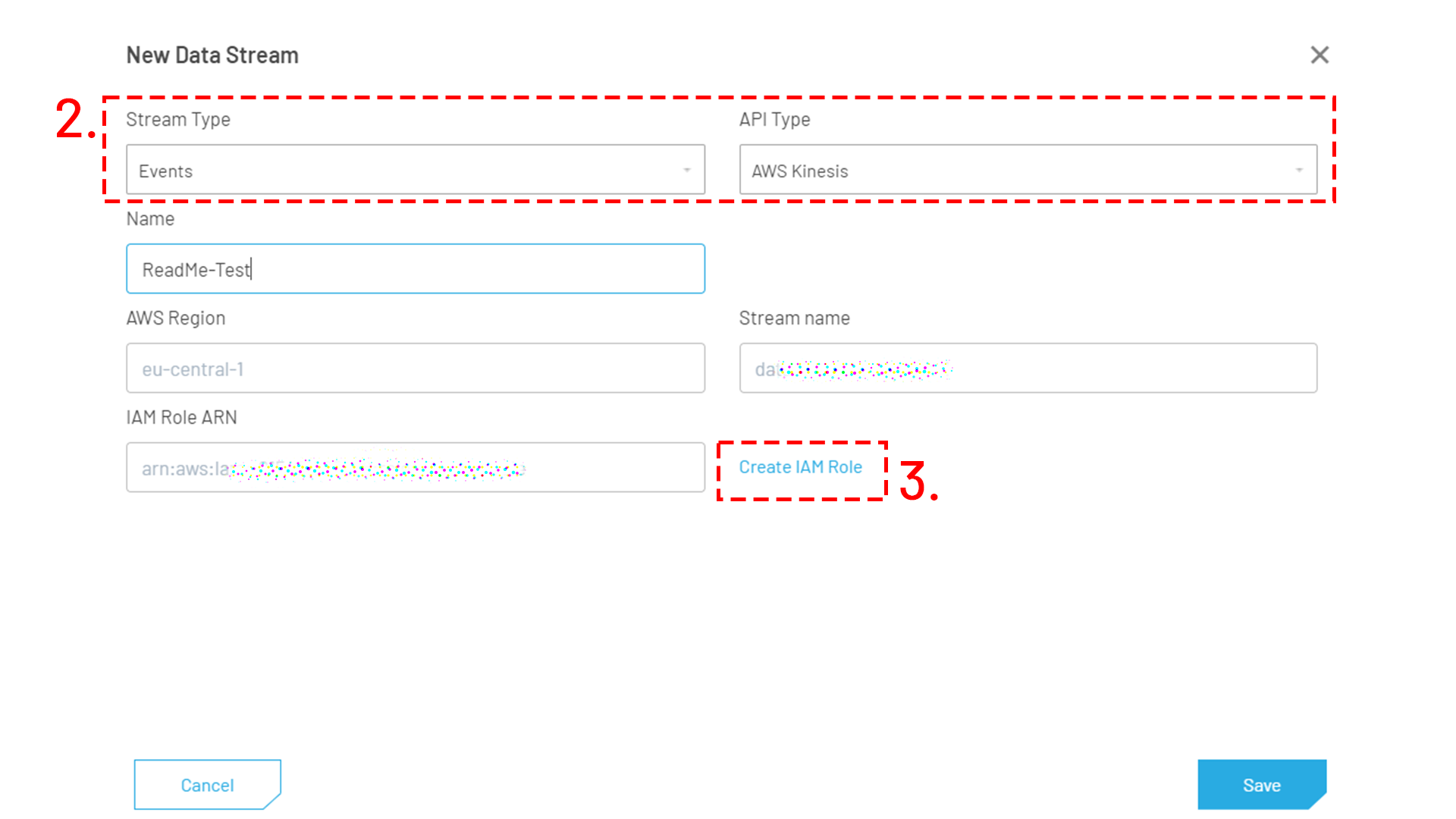
- Open the Bell Portal and navigate to Configuration-Data Streams-Add New Data Stream.
- In the popup select AWS Kinesis as API Type and select the desired Stream Type.
- Click on Create IAM Role to open the Cloud Formation Template in a separate window.
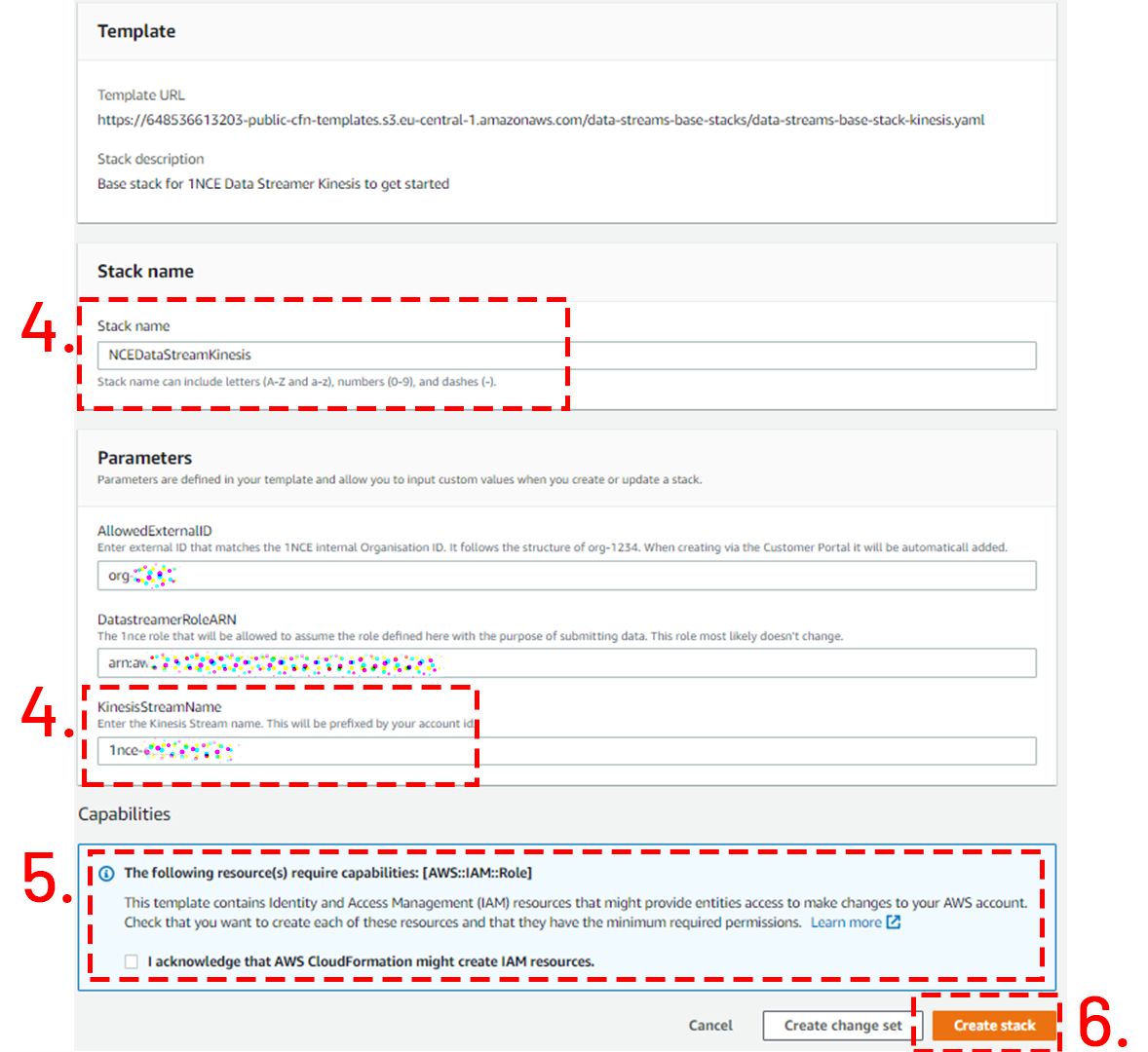
- Adapt the CFN Template parameters (Stack Name, KinesisStreamName). Do NOT change AllowedExternalID and DatastreamerRoleARN.
- Set the IAM Creation checkbox.
- Execute the CFN Stack by clicking on Create Stack.
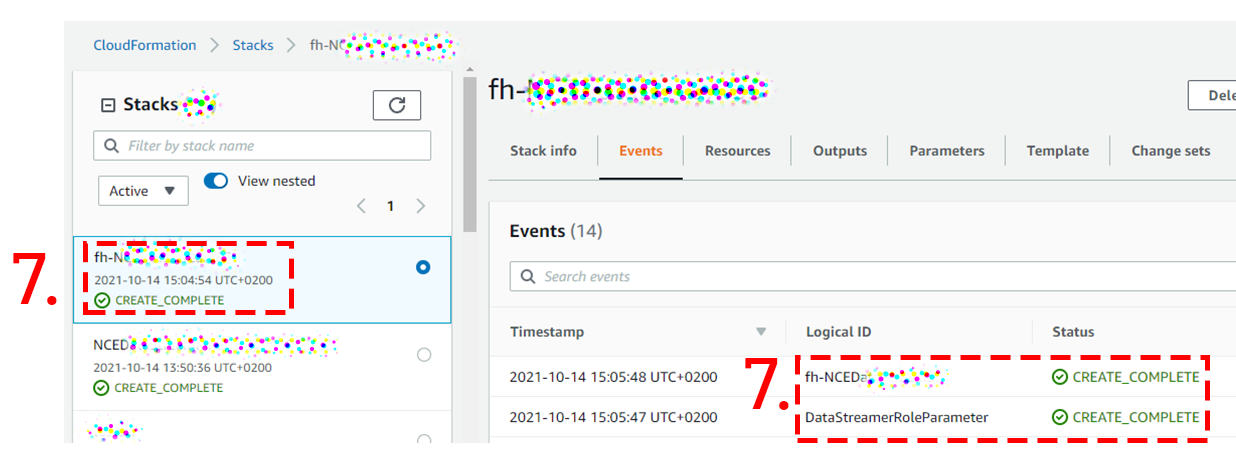
- Please wait until the Cloud Formation Process has ended and all resources have been created. Once the Cloud Formation Stack has successfully finished, please proceed with the following steps.
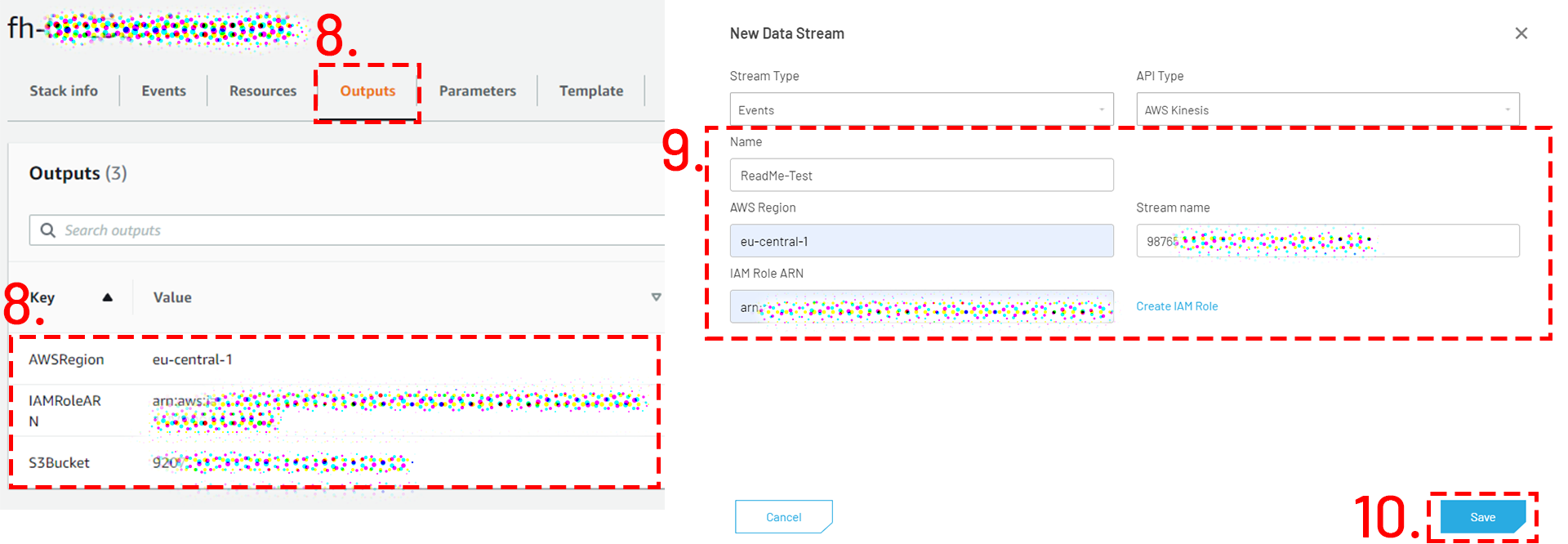
- Go to the Outputs tab of the created CFN Stack.
- Copy the shown parameters to the popup in the Bell Portal.
- Click on Save in the popup. The Data Streamer integration will be setup. Please not that this might take a few minutes.
Testing AWS Kinesis Data Streamer
For testing a AWS Kinesis integration, an IoT or mobile network device (e.g., smartphone) with an active Bell SIM has to be used to generate Event and Usage records.
Event Records
- Place a Bell SIM into an IoT device or any other mobile device.
- Ensure that the mobile device allows roaming network and data connections and that the Bell APN is setup correctly.
- After the device has attached to the network, see mobile network status indicator on the smartphone-
- The attachment to a mobile network will cause a few Event records to be transmitted over the Data Streamer integration.
Usage Records
- Place and configure (roaming, APN, data roaming) the Bell SIM in a capable mobile device.
- For testing the two Usage record types, data and SMS, the following procedures can be executed:
- SMS usage: Send a MO-SMS from the SIM device or send a MT-SMS using the SMS Console or API to an active Bell SIM.
- Data usage: Allow data roaming, configure the APN and create a data session. Smartphones will automatically create a data session. Use some data service (e.g., IMCP Ping, TCP/UDP traffic, open a website). Close the data session by deactivating the PDP session or disconnecting the device from the network.
- Usage records are only written once the data and SMS volume has been actively used. Ensure that the SMS is finalized and delivered. For data usage, the current data session needs to be closed to get an immediate usage record in the Data Streamer.
AWS Kinesis Results
Dependent on the Data Streamer configuration the AWS Kinesis Stream will contain Event and Usage data. The data is received as JSON Objects.
From the AWS Kinesis Stream the received data can be processed using available AWS processing tools.